Introduction
Choosing the right storage solution for your computer is one of the most impactful decisions you can make when building or upgrading a system. Whether you are a casual browser, a creative professional, or an avid gamer, your choice between an SSD vs. HDD will fundamentally alter how your machine feels and performs. Storage isn’t just about how much space you have for files; it is about how quickly your operating system boots, how fast your applications load, and how reliably your data is stored over time.
For years, the Hard Disk Drive (HDD) was the king of capacity, but the rise of Solid State Drives (SSD) has completely revolutionized the landscape. Today, these two technologies coexist, yet they serve very different purposes. Navigating the technical jargon surrounding read/write speeds, form factors, and price-per-gigabyte can feel overwhelming for many users. This guide is designed to cut through the noise, providing you with a clear, straightforward comparison. By understanding the core mechanics and practical benefits of each drive type, you will be empowered to make an informed decision that optimizes both your performance and your budget. Let’s dive deep into the world of computer storage to find the perfect match for your specific computing needs.
What is SSD vs. HDD?
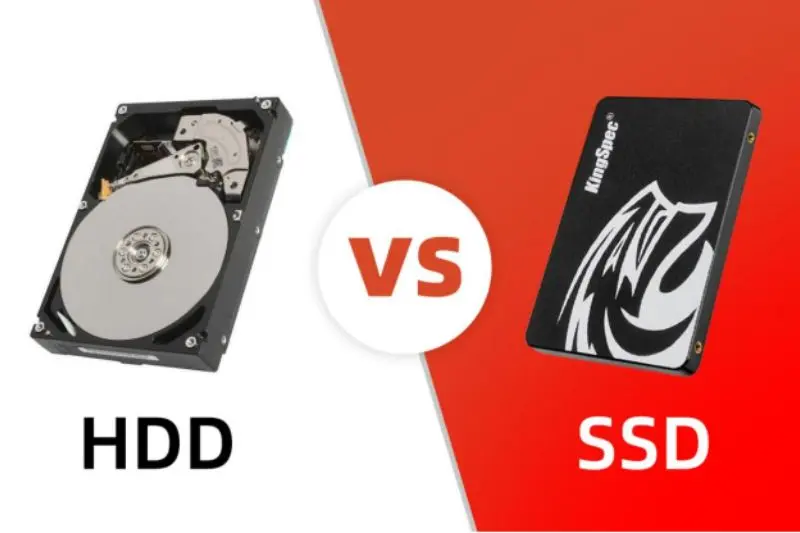
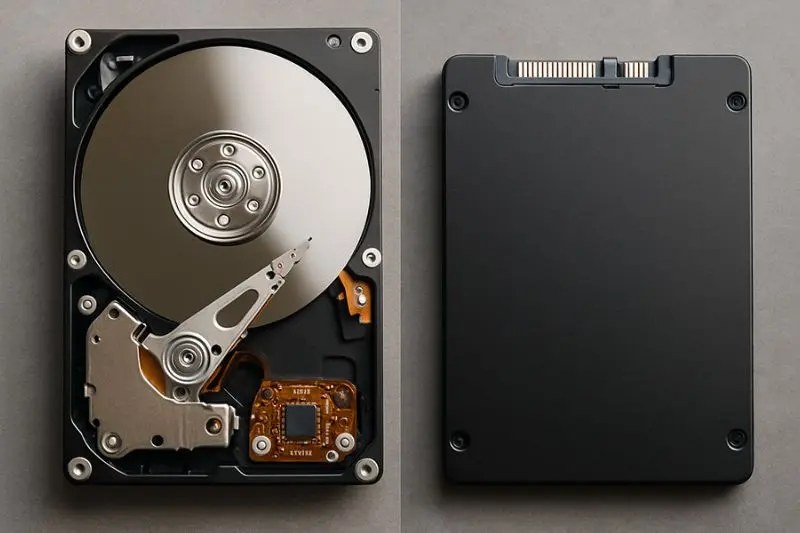
To understand the comparison, we must first look at what these drives actually are. A Hard Disk Drive (HDD) is a traditional storage device that uses mechanical spinning platters and a moving read/write head to access data. It functions much like a record player; when you request a file, the disk spins to the right location so the head can retrieve the magnetic data.
On the other hand, a Solid State Drive (SSD) uses NAND flash memory, which is the same type of technology found in USB thumb drives, but at a much higher, more stable performance tier. Because there are no moving parts, an SSD can access data almost instantaneously.
Why is SSD vs. HDD Important?
The importance of this comparison lies in the user experience. Your storage drive acts as the bridge between your long-term data and your processor. If you have a high-speed CPU but a slow storage drive, you create a “bottleneck.” Your processor spends most of its time waiting for the drive to find information rather than working on your tasks.
By selecting the right drive, you maximize your efficiency. An SSD can make an older computer feel brand new, while an HDD remains the most cost-effective way to store massive libraries of photos, videos, and backups. Understanding these differences ensures you don’t overspend on storage you don’t need or compromise performance where you actually do.
Detailed Step-by-Step Guide: Choosing Your Drive
When you are looking to upgrade or build, follow these steps to determine which drive fits your workflow.
Assessing Your Primary Workload
Start by identifying what you do most. Are you a video editor? You need the high throughput of an NVMe SSD. Are you a student writing documents and watching movies? A standard SATA SSD is sufficient. If you are archiving hundreds of hours of 4K footage, an HDD is your best value.
Understanding Form Factors
- 2.5-inch SATA: The standard size for most laptops and older desktops.
- M.2 NVMe: Small, stick-like drives that plug directly into the motherboard, offering the fastest speeds currently available.
- 3.5-inch HDD: The standard size for desktop computers, offering the highest capacities.
Matching Drive to Operating System
Always install your Operating System (Windows, macOS, or Linux) on an SSD. This is non-negotiable for modern computing. The speed boost in boot times and system responsiveness is significant.
Configuring Hybrid Storage
Many professionals use a “dual drive” approach. They use a fast, lower-capacity SSD (e.g., 1TB) for the OS and frequently used applications, and a large-capacity HDD (e.g., 8TB) for static file storage. This provides the best of both worlds.
Benefits of SSD vs. HDD
Each technology has distinct advantages depending on your specific requirements:
Benefits of SSD:
- Blistering Speed: Applications launch in seconds, and system boots take mere moments.
- Durability: No moving parts mean they are highly resistant to physical shock, drops, and vibrations.
- Silent Operation: Since there are no spinning parts, they are completely silent.
- Energy Efficiency: They consume less power, which helps extend battery life in laptops.
- Compact Size: Ideal for ultrabooks and small-form-factor builds.
Benefits of HDD:
- Superior Capacity: HDDs are available in much higher capacities for a fraction of the cost of large SSDs.
- Cost-Per-Gigabyte: If you need to store vast amounts of data, the HDD is unbeatable in terms of price.
- Data Recovery: In many cases, it is easier and cheaper to recover data from a failed HDD than from a modern SSD.
- Lifespan for Static Data: They are excellent for “cold storage” (backups you don’t access often).
Disadvantages / Risks
Every piece of hardware has trade-offs that you should carefully consider:
Risks of SSD:
- Higher Price: The cost per gigabyte is significantly higher than that of an HDD.
- Finite Write Cycles: Flash memory cells have a limit on how many times they can be written to before they wear out, though this is rarely an issue for average users.
- Failure Patterns: When an SSD fails, it can sometimes happen suddenly, making data recovery difficult.
Risks of HDD:
- Mechanical Failure: The moving parts wear out over time, and the drive is susceptible to physical damage if dropped.
- Slow Speeds: Large files take a long time to transfer, and the system can feel “sluggish.”
- Noise and Heat: They generate heat and produce a subtle humming or clicking noise while operating.
- Fragility: You must be careful when moving a desktop containing an HDD while it is running.
Common Mistakes to Avoid
- Installing the OS on an HDD: This is the single biggest performance killer. Never make this mistake.
- Filling an SSD to 100% capacity: SSDs need “free space” to manage data effectively. Keeping them nearly full can drastically reduce their speed and longevity.
- Ignoring Backups: Regardless of whether you choose SSD vs. HDD, all hardware eventually fails. Always maintain a backup strategy, preferably off-site or in the cloud.
- Buying Used Enterprise Drives: While tempting, old enterprise HDDs may have thousands of hours of wear and tear.
Is SSD vs. HDD speed noticeable for gaming?
Yes. While SSDs don’t necessarily increase your maximum frame rate, they drastically reduce load times for levels, assets, and textures, preventing “pop-in” issues in modern games.
Can I use both an SSD and an HDD in the same PC?
Absolutely. This is the recommended setup for many users. You get the speed of the SSD for your OS and the massive storage space of the HDD for files.
Which drive lasts longer?
This is debated. HDDs are susceptible to mechanical wear, while SSDs have write-cycle limits. For a normal user, both will likely last many years before needing replacement.
Is an external SSD worth the extra cost?
If you need to move large files frequently between computers, an external SSD is worth every penny due to its high transfer speeds and portability.
How do I know if my computer supports an SSD?
Most computers made in the last decade have at least one SATA port. Check your motherboard manual or system specs to see if you have an M.2 slot for even faster performance.
Does the brand of the SSD vs. HDD matter?
Yes, but look for reliability ratings rather than just brand names. Major manufacturers often have long-standing reputations for durability and offer better warranty support.
Expert Tips & Bonus Points
- Firmware Updates: Always check the manufacturer’s website for firmware updates for your SSD. These updates often improve performance and reliability.
- Keep it Cool: Both drive types perform better when they have adequate airflow. Ensure your PC case is clean and well-ventilated.
- Disable Defragmentation for SSDs: Windows usually does this automatically, but never manually defrag an SSD; it does not help and only causes unnecessary wear.
- Use SATA cables: If you are installing a SATA SSD or HDD, use a high-quality, locking SATA cable to ensure a stable connection.
Conclusion
The debate of SSD vs. HDD is no longer about which one is “better” in a vacuum; it is about which one is right for your specific situation. The technological evolution has made SSDs the gold standard for performance and responsiveness, making them an essential component for any modern operating system. Conversely, the high-density storage capacity provided by HDDs remains a critical tool for those who deal with massive amounts of data, such as high-resolution video archives or extensive document backups.
Ultimately, your goal should be to create a balanced system. By prioritizing an SSD for your active software and the operating system, you ensure that your daily interactions with your computer are snappy and fluid. Supplementing this with an HDD provides a cost-effective, secure space for the files that don’t need instant-access speed but require reliable, long-term storage.
As technology continues to advance, we are seeing the lines blur, but for now, the dual-drive strategy remains the best practice for enthusiasts and professionals alike. Evaluate your storage needs, consider your budget, and choose the combination that keeps your digital life running smoothly. Regardless of which path you choose, remember that the most important storage rule remains constant: a drive is only as good as the backup strategy behind it. Regularly back up your important files to ensure that, no matter what happens to your hardware, your digital legacy remains safe, secure, and accessible for years to come. Making these informed choices today will save you hours of frustration and performance bottlenecks tomorrow.