
Introduction
We have all been there. You are right in the middle of streaming your favorite show, attending an important video call, or uploading a critical document, and suddenly the loading wheel of death appears. Your internet connection drops, or it slows down to a frustrating crawl.
Wireless connectivity has become the invisible backbone of our daily lives, keeping us connected to work, entertainment, and each other. However, when it fails, it can bring your entire day to a grinding halt.
Understanding how to fix Wi-Fi problems does not require a degree in computer science. In fact, most wireless networking issues can be resolved with a few simple adjustments and troubleshooting steps that anyone can do at home.
This comprehensive guide will walk you through the most common reasons your internet might be acting up and provide straightforward, practical solutions to get you back online quickly. Whether you are dealing with a weak signal, constant dropouts, or agonizingly slow speeds, we have you covered.
What is Wi-Fi?
Wi-Fi is a wireless networking technology that allows devices such as computers, smartphones, tablets, and smart home appliances to interface with the internet without physical cables. It uses radio frequencies to transmit data through the air between your devices and a central router.
Your router is connected to a modem, which receives the internet signal from your Internet Service Provider (ISP). The router then takes this data and translates it into a radio signal.
Your devices have built-in wireless adapters that pick up this signal and translate it back into digital data. This two-way communication happens in milliseconds, allowing you to browse web pages, stream videos, and play games seamlessly.
Why is Fixing Wi-Fi Problems Important?
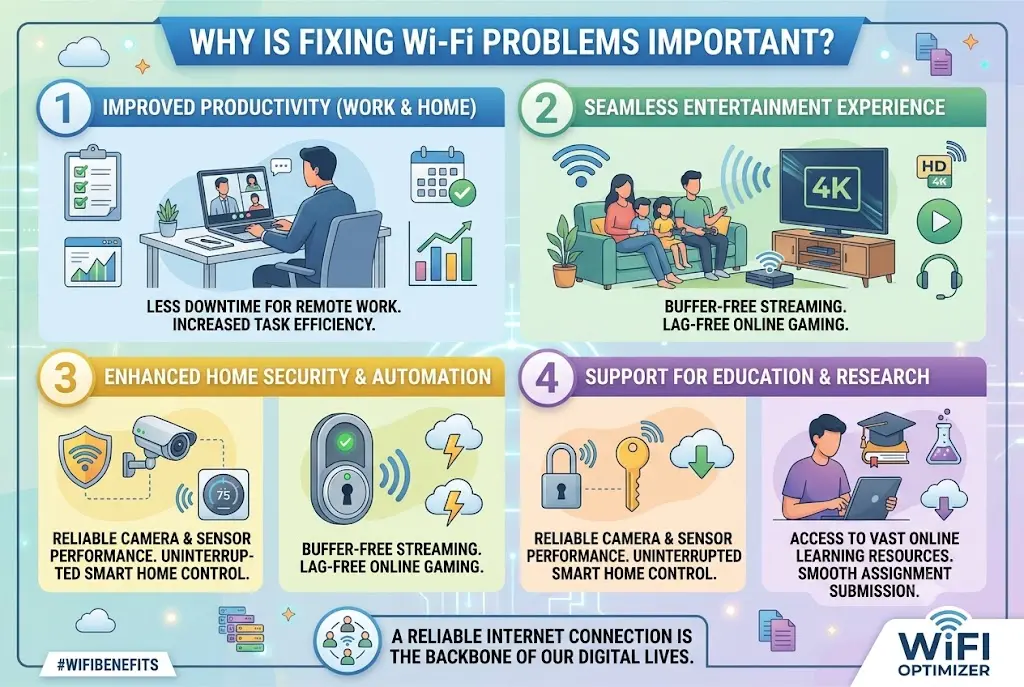
A reliable internet connection is no longer a luxury; it is a necessity for modern living. Resolving network issues promptly ensures that your household or office remains productive, connected, and secure.
When your wireless network functions optimally, you save time and eliminate the immense frustration that comes with a lagging connection. Poor connectivity can disrupt remote work, lower the quality of online learning, and ruin your leisure time.
Furthermore, troubleshooting your own network saves you from waiting hours on hold with technical support or paying for expensive technician visits. By learning a few basic maintenance steps, you gain complete control over your digital environment.
Detailed Step-by-Step Guide to Fixing Common Wi-Fi Problems
Restart Your Router and Modem
The simplest and most effective fix for the majority of internet issues is a classic power cycle. Routers are essentially small computers with their own processors, memory, and operating systems. Over time, their memory can become cluttered with data, leading to performance drops or temporary glitches.
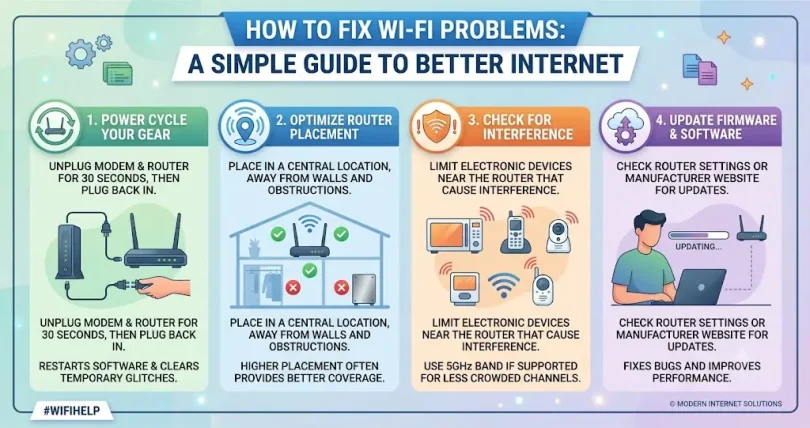
To perform a proper restart, unplug the power cables from both your modem and your router. Wait at least 30 seconds to allow the devices to clear their temporary memory completely.
Plug the modem back in first and wait for all its lights to turn solid, which usually takes a minute or two. Once the modem is online, plug in your router. Wait another two minutes for the router to boot up and broadcast the signal before testing your connection.
Optimize Your Router Placement
The physical location of your router plays a massive role in the strength and reach of your wireless signal. If your router is hidden away in a closet, placed on the floor, or tucked behind a television, your signal strength will suffer dramatically.
Radio waves travel outward and downward from the router antennas. For the best coverage, place your router in a central location in your home, ideally on an elevated surface like a shelf or table.
Keep the router away from thick concrete walls, brick structures, and large metal objects, as these materials absorb and reflect wireless signals. Additionally, avoid placing it near large mirrors, which can distort the signal.
Change the Wi-Fi Frequency Band
Most modern routers are dual-band, meaning they broadcast two different signals: 2.4 GHz and 5 GHz. Understanding the difference between these two bands can instantly improve your device performance.
The 2.4 GHz band travels farther and passes through walls easily, but it offers slower data speeds and is highly prone to interference from household items like microwaves and baby monitors.
The 5 GHz band offers much faster speeds and suffers less interference, but it has a shorter range and struggles to penetrate solid obstacles. If you are close to the router and need speed for streaming or gaming, connect to the 5 GHz band. If you are moving around the house, stick to the 2.4 GHz band.
Update Your Router Firmware
Just like your smartphone or computer, your router relies on software called firmware to run efficiently and securely. Manufacturers regularly release updates to fix bugs, improve performance, and patch security vulnerabilities.
To update your firmware, you need to log into your router’s admin console through a web browser. Find your router’s IP address, which is often printed on a sticker on the bottom of the device.
Type this address into your browser bar, log in with your credentials, and look for a section labeled “Advanced,” “System,” or “Firmware Update.” Click the update button if a new version is available, and do not unplug the router while the update is installing.
Reduce Network Crowding
When too many devices try to use the same wireless network simultaneously, bandwidth becomes congested. Smart TVs, smartphones, gaming consoles, and smart home gadgets all compete for a slice of the internet pie.
Check which devices are connected to your network by accessing your router web portal. Disconnect any older devices or smart tech that you are not actively using.
For high-bandwidth activities like online gaming or 4K streaming, consider using a physical Ethernet cable instead of wireless. This frees up wireless bandwidth for your mobile devices and provides a perfectly stable connection for your main hardware.
Benefits of Solving Wi-Fi Problems
- Faster Download and Upload Speeds: Enjoy rapid web browsing, instant file transfers, and snappy response times across all connected devices.
- Seamless Media Streaming: Eliminate annoying buffering wheels while watching high-definition movies or listening to music.
- Improved Video Call Quality: Ensure crystal-clear video and audio during remote work meetings or calls with family.
- Enhanced Gaming Performance: Reduce lag and latency times, giving you a smooth and competitive online gaming experience.
- Better Battery Life: Your smartphones and laptops use less battery power when they do not have to struggle to maintain a weak signal.
- Increased Network Security: Regular troubleshooting and firmware updates keep your personal data safe from external cyber threats.
Disadvantages and Risks of Neglecting Wi-Fi Issues
- Data Leaks and Security Vulnerabilities: Outdated router software makes your home network a prime target for hackers looking to steal sensitive personal information.
- Lost Productivity: Constant disconnections disrupt remote work tasks, potentially leading to missed deadlines and professional frustration.
- Hardware Strain: Devices that continuously search for a weak signal can experience overheating and accelerated wear and tear.
- Wasted Money: You may end up paying for a premium, high-speed internet plan without actually receiving those speeds due to internal network bottlenecks.
Common Mistakes to Avoid
One of the most frequent mistakes users make is placing their router directly next to other electronic devices. Equipment like cordless phones, microwave ovens, Bluetooth speakers, and even baby monitors operate on the same radio frequencies as your network, causing severe signal interference.
Another error is leaving the factory-default network name and password unchanged. Default credentials are easily found online, making your network vulnerable to unauthorized access from neighbors or malicious actors who can steal your bandwidth.
Lastly, many people completely overlook the condition of their physical cables. A damaged, bent, or outdated Ethernet cable running from your modem to your router can severely bottleneck your internet speeds, regardless of how new your router is.
Why does my Wi-Fi keep disconnecting randomly?
Random disconnections are typically caused by wireless interference, outdated device drivers, or a router that is overheating. Try changing the broadcast channel within your router settings to reduce interference from neighboring networks, and ensure your router has plenty of ventilation.
What is the difference between a modem and a router?
A modem brings the internet signal from your service provider into your home, acting as a translator between the outside network and your house. A router takes that internet signal and distributes it wirelessly or via cables to all your personal devices.
Can old devices slow down my entire wireless network?
Yes, older devices running on legacy wireless standards can drag down the performance of your entire network. Many routers drop their overall speed to accommodate the oldest connected device, so it is best to disconnect outdated gear when it is not in use.
How do I know if my router needs to be replaced?
If your router is more than four to five years old, frequently drops connections despite multiple resets, or cannot handle your current internet plan speeds, it is likely time for an upgrade to a modern Wi-Fi 6 or Wi-Fi 7 model.
Will a Wi-Fi extender fix my dead zones?
A Wi-Fi extender can help push a signal into far corners of your home, but it often cuts your overall internet speed in half within that extended zone. For larger homes, a mesh network system is a much more efficient solution than a standard extender.
Why is my internet fast on my phone but slow on my laptop?
This usually points to a localized issue on your laptop rather than a problem with your main network. Try updating your laptop’s wireless network card drivers, clearing your browser cache, or disabling any active Virtual Private Networks (VPNs) to see if speeds improve.
Expert Tips and Bonus Points
To truly maximize your wireless network performance, consider logging into your router settings and changing the wireless channel. By default, most routers are set to “Auto,” which often lands on a crowded channel used by all your neighbors. For the 2.4 GHz band, manually switching to channels 1, 6, or 11 will generally offer the cleanest performance, as these channels do not overlap with one another.
Additionally, take advantage of Quality of Service (QoS) settings if your router supports them. This feature allows you to prioritize specific types of internet traffic over others. For instance, you can instruct your router to prioritize work laptops and gaming consoles during the day, ensuring that background file downloads on another device do not interrupt your video calls.
Conclusion
Dealing with inconsistent internet performance can be incredibly disruptive, but learning how to fix Wi-Fi problems does not require technical expertise. By applying the straightforward strategies outlined in this guide, you can eliminate dead zones, boost your data speeds, and create a highly stable online environment.
Most everyday connectivity issues stem from simple factors like poor router placement, minor software bugs, or overcrowded radio frequencies. Taking a few minutes to power cycle your hardware, adjust your router’s location, or switch to a less congested frequency band can make a massive difference in your daily digital experience.
Maintaining a healthy home network requires minimal ongoing effort once you have established the correct foundation. Keep your router firmware updated, manage your connected devices wisely, and avoid placing your hardware near major sources of physical or electronic interference.
With these easy fixes in your troubleshooting toolkit, you can confidently manage your home network and enjoy uninterrupted connectivity for work, education, and entertainment.